
Tip!: Setting custom access restrictions when granting access to content requires an active Plex Pass subscription for the admin Plex Media Server account.
All users can make use of basic server/library access with their family and close, personal friends by choosing which libraries to grant access to them, and for managed users they can use preset restrictions profiles.
Plex Pass subscribers can more finely control the restrictions to content to which they allow access. For instance, you can choose whether or not the friend is able to use the Downloads feature for content from your server. You can also select specific content ratings from your library to limit by as well as content that you’ve set with a specific Label.
When initially inviting a friend, you’ll see a screen related to restrictions as part of the invite flow.
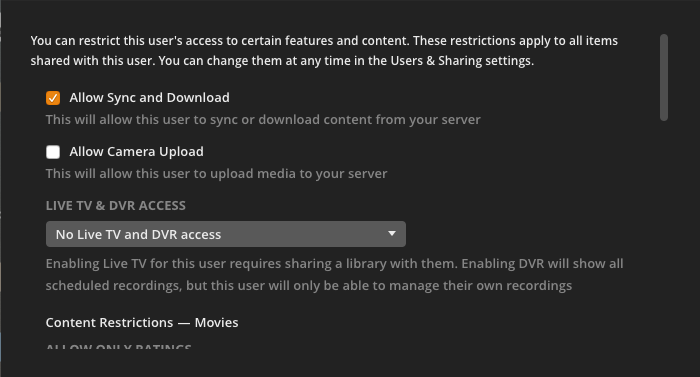
When editing an existing access in Plex Home or Library Access settings, you can also edit restrictions. For Managed users, the restriction profile must be set to None if you wish to edit Rating and Label restrictions on the the library types.
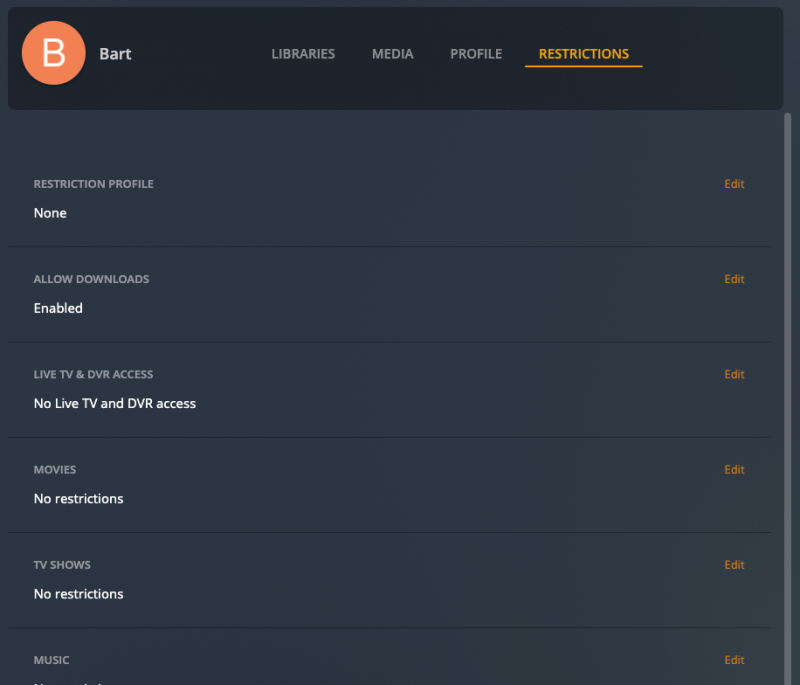
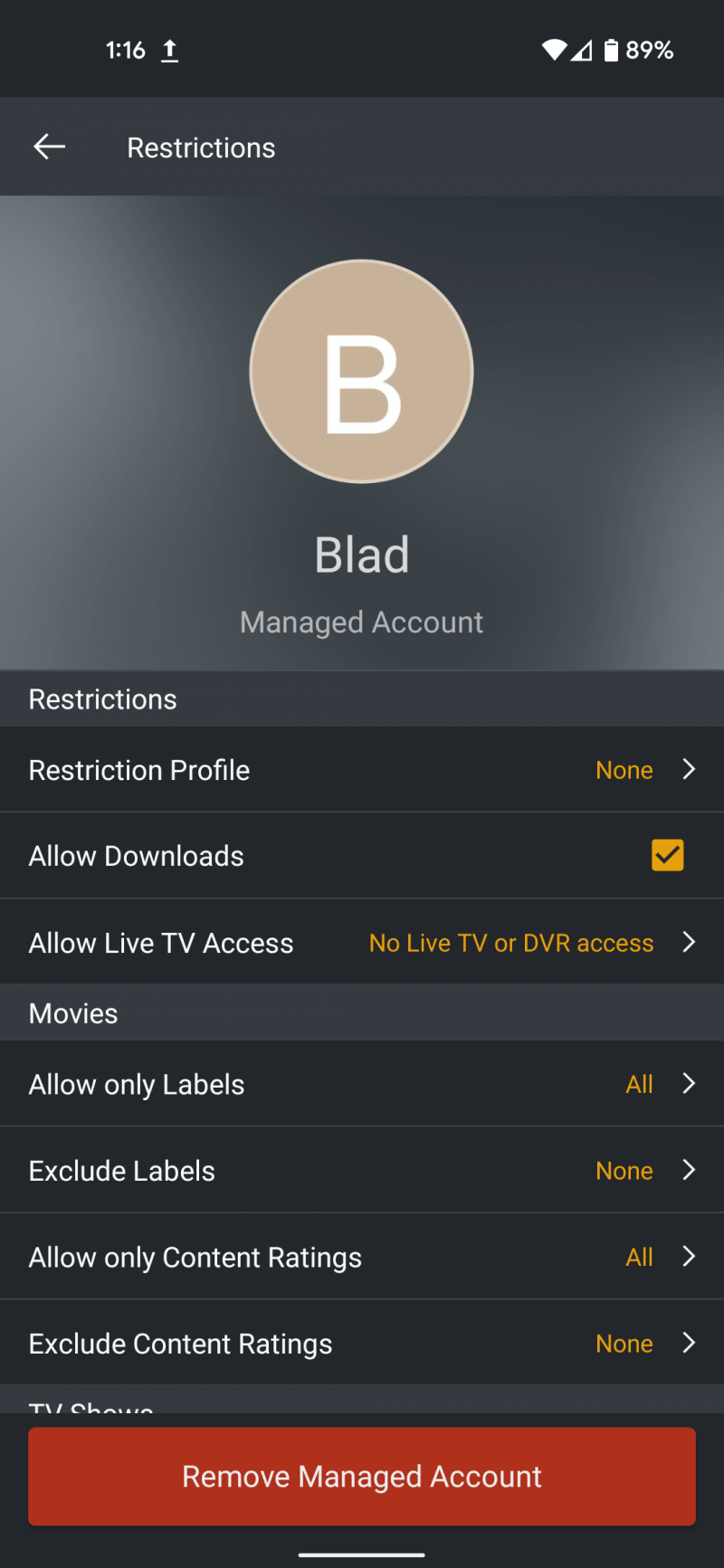
Related Page: Managing Library Access
Setting Restrictions
Allow Downloads
When enabled, users with access to the libraries are able to download content to their mobile devices. (Only the server admin can directly download a file to their computer via the Web app)
Warning: Preparing content for Download can require both CPU usage and disk space on your Plex Media Server. Be aware, when allowing Downloads access for other accounts.
Related Page: Downloads Overview
Live TV & DVR Access
This is related to access of over-the-air broadcasts, through an antenna and tuner connected to the Plex Media Server. Members of a Plex Home can be optionally allowed access to tune Live TV that’s been set up or both Live TV and DVR. When enabled, the user will be able to use Live TV in supported apps. If DVR access is also allowed they will be able to manage their own recordings (but not edit/manage recordings set up by others).
Note: Remember these are available only to members of your Plex Home.
Related Page: Live TV & DVR (Set Up and Manage)
Related Page: What is Plex Home?
Ratings
You can choose to restrict content in movie and TV libraries by content rating. You can set specific ratings that are allowed or you can choose specific ratings that are excluded (not allowed).
For instance, if you choose G, PG as the restriction to allow, then only content that is rated either “G” or “PG” will be able to be accessed . If you choose to exclude R ratings, then those will be hidden. (aside from content you may share via Label; see below). A content rating can either be allowed or excluded. If added to one it will be removed from the other.
Note that restricting by rating will remove the ability to view that type of library “by Folder”. This is because folder names cannot be hidden.
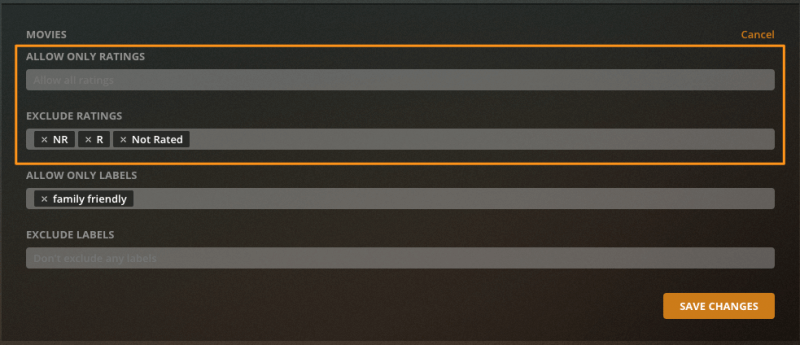
The drop-down will auto-populate with ratings from the movie libraries you chose to share as well as a default set of “United States” ratings.
Labels
You can create arbitrary Labels when editing library content. When granting access, you can then choose to allow one or more Labels, so that content matching those Labels is accessible. You can also exclude Labels.
Note that restricting by Label will remove the ability to view that type of library “by Folder”. This is because folder names cannot be hidden.
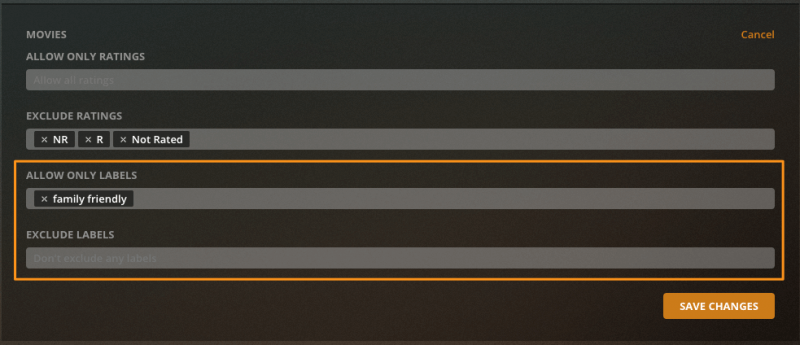
Tip!: If you specify particular ratings, then content matching the chosen Labels will be shared in addition to the ratings. If you have no ratings specified, then only content matching the Labels will be shared.
Note: It is not currently possible to restrict photo libraries by Label.
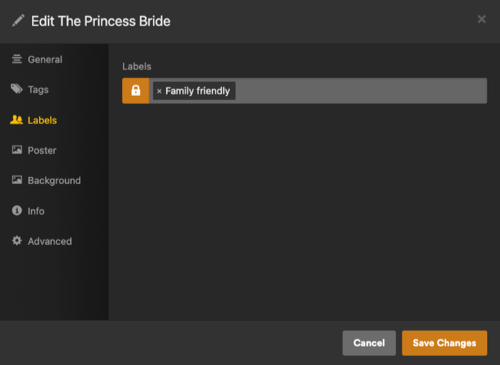
To apply a Label to content, you can edit the library item and then add the Label under the Labels tab.
Related Page: Edit Details